
Few things are more frustrating than opening your maps app only to realize your GPS is completely inaccurate or not working at all. Whether you are trying to navigate traffic, book a ride, track a workout, or share your location, GPS problems can quickly become annoying and inconvenient. That is why so many users search for how to fix GPS not working when location services suddenly stop responding.
The good news is that most GPS issues are easier to solve than people think. In many cases, the problem comes from simple settings, weak signals, outdated apps, or software glitches rather than serious hardware damage. This guide explains the most effective ways to troubleshoot and restore GPS functionality on smartphones and other devices.
What Causes GPS Problems?
Before fixing the issue, it helps to understand why GPS stops working in the first place.
GPS problems usually happen because of:
- Weak satellite signals
- Disabled location settings
- Software bugs
- Battery-saving restrictions
- App permission issues
- Outdated operating systems
- Network interference
- Damaged hardware
Sometimes the issue comes from multiple factors happening at the same time.
Signs Your GPS Is Not Working Properly
GPS issues do not always mean complete failure. Sometimes the symptoms are subtle.
Common signs include:
- Incorrect location tracking
- Slow location updates
- Maps spinning or freezing
- Navigation constantly recalculating
- Ride-sharing apps unable to detect location
- Fitness apps tracking wrong distances
- “Searching for GPS” messages
Recognizing the symptoms can help narrow down the real cause.
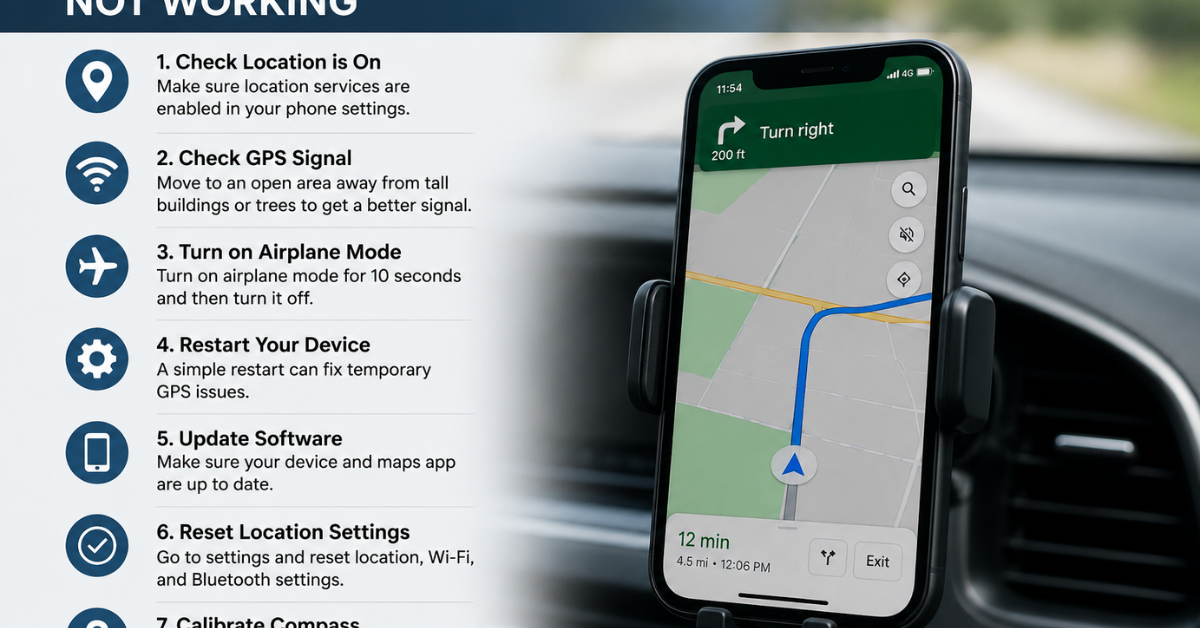
Restart Your Device First
It sounds simple, but restarting your phone solves many temporary GPS glitches.
A restart can:
- Refresh system processes
- Clear temporary bugs
- Reconnect location services
- Reset wireless connections
After rebooting, test your GPS again using a maps application.
Check Location Services Settings
One of the most common causes of GPS failure is disabled location services.
On Android
- Open Settings
- Tap Location
- Make sure Location is turned on
- Select High Accuracy mode if available
On iPhone
- Open Settings
- Go to Privacy & Security
- Tap Location Services
- Turn Location Services on
Without proper location access, GPS apps cannot function correctly.
Enable High Accuracy Mode
Many Android devices include different location modes.
These usually include:
- Device only
- Battery saving
- High accuracy
High accuracy mode combines:
- GPS satellites
- Wi-Fi
- Mobile networks
- Bluetooth signals
This typically improves navigation precision significantly.
Check App Permissions
Sometimes GPS works system-wide, but a specific app cannot access your location.
To fix this:
- Open device settings
- Go to Apps
- Select the affected app
- Tap Permissions
- Enable Location access
For best results, allow permission while using the app.
Turn Airplane Mode On and Off
Toggling airplane mode refreshes wireless connections and can fix location errors quickly.
Steps:
- Turn on airplane mode
- Wait about 20 seconds
- Turn it back off
- Reopen your GPS app
This method often helps when the device struggles to reconnect to satellites.
Update Your Apps and Operating System
Outdated software can interfere with location services.
Make sure to update:
- Google Maps
- Apple Maps
- Ride-sharing apps
- Fitness trackers
- Device operating system
Software updates frequently include GPS bug fixes and performance improvements.
Calibrate Your Phone’s Compass
Sometimes the GPS works, but the compass becomes inaccurate.
To calibrate on Android:
- Open Google Maps
- Move your phone in a figure-eight motion
- Repeat several times
On iPhone:
The system usually calibrates automatically, but moving the device similarly can help.
Compass calibration improves navigation direction accuracy.
Clear Cache for Maps Apps
Corrupted cache files can affect GPS behavior.
On Android:
- Open Settings
- Go to Apps
- Select Google Maps
- Tap Storage
- Clear Cache
On iPhone:
You may need to reinstall the app because iOS handles cache differently.
This often resolves freezing and inaccurate location tracking.
Disable Battery Saver Mode
Battery optimization features sometimes limit GPS performance to conserve power.
When battery saver mode is enabled:
- GPS refreshes less often
- Background location tracking may stop
- Navigation apps can become inaccurate
Try disabling:
- Battery saver
- Power saving mode
- Adaptive battery settings
This is especially important during navigation.
Check Your Internet Connection
Although GPS relies on satellites, many apps also need internet access.
Weak mobile data or Wi-Fi can cause:
- Delayed map loading
- Incorrect routes
- Missing location updates
Try switching between:
- Wi-Fi
- Mobile data
- Different networks
Poor connectivity often looks like a GPS issue even when it is not.
Move to an Open Area
GPS signals struggle indoors and around large obstacles.
Common signal blockers include:
- Tall buildings
- Underground parking
- Heavy storms
- Thick walls
- Metal structures
Go outside into an open area and test your GPS again.
This is one of the simplest but most overlooked solutions.
Reset Network Settings
If GPS issues continue, resetting network settings may help.
On Android:
Settings > System > Reset Options > Reset Wi-Fi, Mobile & Bluetooth
On iPhone:
Settings > General > Transfer or Reset iPhone > Reset > Reset Network Settings
This refreshes:
- Wi-Fi
- Bluetooth
- Cellular settings
It can improve location detection stability.
Reinstall the Problematic App
Sometimes the issue is not with GPS itself but with a specific app.
Reinstalling can:
- Remove corrupted files
- Refresh permissions
- Fix software conflicts
Delete the app, restart your phone, and reinstall it from the app store.
Check for Hardware Problems
If none of the software fixes work, hardware damage could be the cause.
Possible hardware issues include:
- Damaged GPS antenna
- Water damage
- Internal component failure
- Faulty motherboard connections
Signs of hardware failure:
- GPS never detects location
- Multiple apps fail completely
- Signal never improves outdoors
In these cases, professional repair may be necessary.
GPS Problems on Android vs iPhone
Both platforms experience GPS issues, but causes can differ slightly.
Android GPS Problems
Often related to:
- Battery optimization
- App permissions
- Device manufacturer settings
iPhone GPS Problems
Usually connected to:
- iOS bugs
- Privacy settings
- Network-related issues
The core troubleshooting steps remain very similar for both systems.
How to Improve GPS Accuracy
Even if your GPS works, accuracy can still improve.
Helpful tips include:
- Keep software updated
- Use high accuracy mode
- Avoid heavy phone cases with metal
- Maintain strong internet connection
- Restart your device regularly
- Keep maps apps updated
Small improvements can make navigation noticeably smoother.
FAQs About GPS Problems
Why is my GPS location wrong?
Incorrect GPS locations are often caused by weak signals, disabled location settings, outdated apps, or calibration issues.
Can GPS work without internet?
Yes. GPS itself works through satellites, but many apps still need internet for maps, traffic, and directions.
Why does GPS stop working indoors?
Buildings, walls, and metal structures can block satellite signals, making indoor GPS tracking unreliable.
Does battery saver affect GPS?
Yes. Battery-saving features often reduce location accuracy to preserve power.
How do I know if my GPS hardware is damaged?
If GPS fails across all apps, never detects location outdoors, or behaves inconsistently after resets, hardware damage may be possible.
Conclusion
Learning how to fix GPS not working problems becomes much easier once you understand the most common causes. In many situations, the issue comes from settings, permissions, weak signals, or temporary software glitches rather than serious damage.
Simple fixes like restarting your phone, enabling location services, updating apps, clearing cache, and disabling battery saver can often solve the problem within minutes. If the issue continues after trying all troubleshooting methods, then hardware inspection may be the next step.
Reliable GPS is essential for navigation, travel, fitness, and everyday convenience, so taking the time to optimize your device can make a major difference in performance and accuracy.