
Nothing ruins a great video faster than pixelation. Whether you are watching a movie, editing footage, uploading content, or recording videos on your phone, blurry blocks and distorted visuals can make everything look low quality. That is why so many people search for how to fix pixelated video when their footage suddenly loses clarity.
Pixelated videos can happen for several reasons, including low resolution, poor compression, internet issues, export settings, damaged files, or playback problems. The good news is that many cases are fixable with the right adjustments. This guide explains the most effective methods for improving video quality across phones, editing software, streaming services, and media players.
What Causes Video Pixelation?
Before fixing the problem, it helps to understand what actually causes pixelated footage.
Common reasons include:
- Low video resolution
- Heavy video compression
- Slow internet connection
- Incorrect export settings
- Corrupted video files
- Upscaling low-quality footage
- Weak streaming quality
- Codec compatibility issues
Sometimes the issue comes from playback settings rather than the actual video itself.
Signs of a Pixelated Video
Pixelation is usually easy to notice, but it can appear in different ways depending on the cause.
Common symptoms include:
- Blurry or blocky visuals
- Grainy textures
- Loss of sharp detail
- Distorted movement during fast scenes
- Compression artifacts
- Videos appearing unclear on larger screens
Recognizing the symptoms can help you identify the best solution faster.
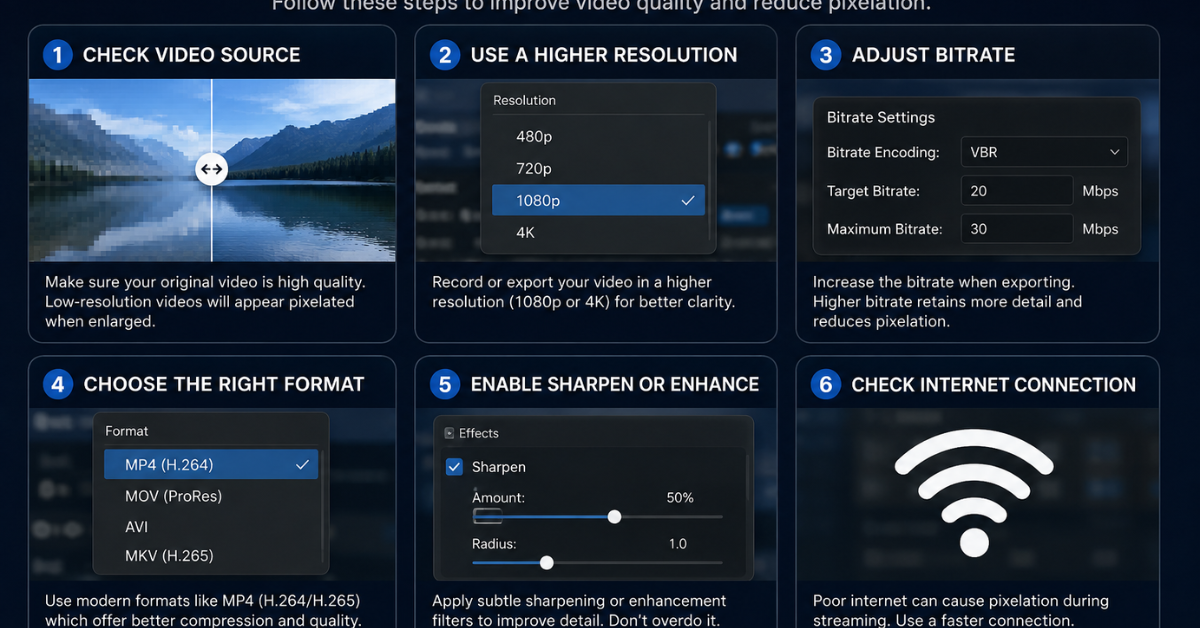
Check the Original Video Resolution
One of the biggest causes of pixelation is low resolution.
For example:
- 480p may look acceptable on small screens
- 720p is decent for casual viewing
- 1080p is standard for clear playback
- 4K offers the sharpest detail
If the original video was recorded in low quality, there are limits to how much clarity can be restored later.
Improve Internet Speed for Streaming Videos
Streaming platforms automatically lower video quality when internet speed drops.
If videos look pixelated while streaming:
- Restart your router
- Move closer to Wi-Fi
- Use a stronger internet connection
- Pause briefly to let the video buffer
- Reduce network congestion
Streaming pixelation is often temporary and unrelated to the actual video file.
Adjust Streaming Quality Settings
Many apps reduce playback quality automatically to prevent buffering.
Check settings on:
- YouTube
- Netflix
- TikTok
- Video conferencing apps
Switch playback manually to:
- 1080p
- 1440p
- 4K if available
This is one of the easiest fixes for blurry streaming content.
How to Fix Pixelated Video on iPhone
iPhone videos may appear pixelated because of storage optimization, messaging compression, or camera settings.
Check Camera Recording Settings
Go to:
Settings > Camera > Record Video
Select higher quality options like:
- 1080p HD
- 4K at 30fps or 60fps
Disable Low-Quality Upload Compression
Apps like messaging platforms often compress videos heavily.
Try:
- Sending files through cloud storage
- Using AirDrop
- Uploading directly instead of forwarding
Free Up Storage Space
Low storage can sometimes affect recording performance and video processing.
How to Fix Pixelated Video Free
Several free methods can improve playback quality without expensive software.
Try Video Repair Tools
Free repair applications can fix:
- Corrupted files
- Playback glitches
- Codec problems
Use AI Video Enhancement Apps
Some free tools use AI upscaling to sharpen blurry footage.
Re-Export the Video
Sometimes simply exporting the file again using better settings improves quality significantly.
How to Fix Pixelated Video Online
Online tools can help repair videos quickly without installing software.
These platforms usually allow users to:
- Upload damaged videos
- Enhance sharpness
- Improve resolution
- Reduce compression artifacts
However, online tools may:
- Limit file size
- Add watermarks
- Reduce privacy for sensitive videos
Always use trusted services when uploading personal footage.
How to Fix Pixelated Video in VLC
Sometimes VLC playback settings create visual issues even when the video itself is fine.
Update VLC Media Player
Older versions may struggle with modern codecs.
Change Video Output Settings
In VLC:
- Open Preferences
- Go to Video
- Change Output Module
Switching output modes can improve playback clarity.
Disable Hardware Acceleration
Hardware acceleration occasionally causes distorted rendering on some systems.
How to Fix Pixelated Video in Premiere Pro
Export settings are one of the most common reasons edited videos look blurry.
Use Higher Bitrate Settings
A low bitrate heavily compresses footage.
Recommended export settings:
- H.264 codec
- High bitrate preset
- Match source resolution
Check Sequence Settings
Your sequence resolution should match the original footage.
Example:
- 1080p footage should use a 1080p timeline
Avoid Excessive Scaling
Upscaling smaller videos can create visible pixelation quickly.
How to Fix Pixelated Video in Adobe Premiere Pro
Although often shortened to Premiere Pro, Adobe Premiere Pro has additional tools for sharpening footage.
Apply Sharpen Effects Carefully
Use moderate sharpening to:
- Improve edge clarity
- Enhance details
- Reduce softness
Too much sharpening can create unnatural visuals.
Enable Maximum Render Quality
During export:
- Check “Render at Maximum Depth”
- Enable “Use Maximum Render Quality”
This improves scaling quality significantly.
How to Fix Pixelated Video in Premiere
Editors often accidentally export low-quality previews instead of full-quality files.
Double-check:
- Export presets
- Resolution settings
- Frame rate
- Bitrate levels
Incorrect export configurations are extremely common.
How to Fix Pixelated Video in After Effects
After Effects projects sometimes appear pixelated because preview settings differ from final renders.
Increase Preview Resolution
Switch from:
- Quarter
- Half
To:
- Full resolution
Use Better Render Settings
When exporting:
- Use higher bitrate
- Enable lossless quality if possible
- Export through Media Encoder for better compression control
How to Fix Pixelated Video in Final Cut Pro
Final Cut Pro users often encounter pixelation after exporting.
Match Library and Timeline Resolution
Incorrect timeline settings can reduce sharpness.
Optimize Media Files
Use optimized or proxy media carefully. Proxy files may appear lower quality during editing.
Export Using Better Codecs
Formats like:
- ProRes
- High-quality H.264
Usually preserve detail more effectively.
How to Fix Pixelated Video in DaVinci Resolve
DaVinci Resolve offers powerful quality controls for editors.
Increase Deliver Page Bitrate
Low bitrate exports are a major cause of blurry results.
Use Noise Reduction Carefully
Excessive noise reduction can remove important details and create soft textures.
Match Timeline Resolution
Always ensure:
- Source footage
- Timeline settings
- Export settings
All match properly.
How to Fix Pixelated Video Streaming Issues
Streaming problems are often linked to internet speed or adaptive bitrate systems.
Reduce Background Internet Usage
Large downloads or multiple devices can lower streaming quality.
Restart Streaming Apps
Temporary app glitches may affect playback resolution.
Clear App Cache
Cached data sometimes causes visual playback problems.
Best Practices to Prevent Pixelated Videos
Prevention is always easier than repair.
Record in Higher Resolution
Whenever possible:
- Use 1080p or 4K
- Avoid low-quality recording modes
Use Proper Lighting
Good lighting improves detail and reduces compression struggles.
Avoid Excessive Compression
Repeated exporting reduces video quality over time.
Keep Software Updated
Modern codecs and updates improve compatibility and playback quality.
Can Pixelated Videos Be Fully Restored?
This depends on the severity of the quality loss.
Minor pixelation caused by:
- Compression
- Export settings
- Streaming issues
Can often be improved significantly.
However, severely low-resolution footage has limitations. AI enhancement tools may help, but they cannot recreate missing detail perfectly.
FAQs About Pixelated Videos
Why does my video look pixelated?
Pixelation usually happens because of low resolution, heavy compression, poor internet speed, or incorrect export settings.
Can blurry videos be fixed completely?
Mild blur and pixelation can often be improved, but heavily damaged or low-resolution footage may not fully recover.
Does exporting reduce video quality?
Yes. Incorrect export settings or excessive compression can lower video quality significantly.
Why do videos look pixelated while streaming?
Streaming services lower playback quality automatically when internet speed drops.
Which video format gives better quality?
Formats like ProRes and high-bitrate H.264 generally maintain better visual quality.
Conclusion
Learning how to fix pixelated video problems starts with identifying the real cause. In some cases, the issue comes from internet speed or playback settings, while in others it is linked to export configurations, compression, or damaged files.
Simple adjustments like increasing bitrate, matching resolution settings, improving internet connectivity, and using better export presets can dramatically improve video clarity. Whether you are editing in Premiere Pro, After Effects, Final Cut Pro, DaVinci Resolve, or simply watching videos online, the right troubleshooting