

If your computer feels slower than usual, websites are loading incorrectly, or apps keep freezing, cached files may be part of the problem. That is why many users search for how to clear cache on computer systems to improve speed, free up storage, and fix performance issues.
Cache files are temporary data stored by browsers, apps, and operating systems to help things load faster. While cache is useful, too much of it can eventually create problems like outdated webpages, glitches, storage overload, and sluggish performance. The good news is that clearing cache is simple and safe when done correctly.
This guide explains how cache works, why it matters, and the best methods to clear cache on Windows PCs, Macs, browsers, and applications.
What Is Cache on a Computer?
Cache is temporary data stored by your device to speed up future tasks.
Examples include:
- Browser images
- Website files
- Login data
- App thumbnails
- Temporary system files
Instead of downloading the same information repeatedly, your computer loads stored cache for faster performance.
However, over time, cached data can become outdated or corrupted.
Why You Should Clear Cache Regularly
Clearing cache can solve many common computer issues.
Benefits include:
- Faster system performance
- More storage space
- Improved browser speed
- Fewer website loading errors
- Better app responsiveness
- Removal of outdated files
It can also help troubleshoot login issues, display problems, and slow browsing.
Signs Your Cache Needs Clearing
You may need to clear cache if you notice:
- Slow browser performance
- Websites not updating properly
- Glitchy images or layouts
- Apps freezing or crashing
- Full storage warnings
- Delayed loading times
Cache problems often build gradually over time.
How to Clear Cache on Computer Windows
Windows stores several types of temporary files and cache data.
Clear Temporary Files
- Open Settings
- Go to System
- Select Storage
- Click Temporary Files
- Choose files to remove
- Click Remove Files
This helps free space and remove unnecessary cached data.
Use Disk Cleanup
Disk Cleanup remains one of the easiest built-in Windows tools.
Steps:
- Search for Disk Cleanup
- Select your drive
- Check temporary file categories
- Confirm deletion
This process removes system cache safely.
How to Clear Cache on Computer Windows 10
Windows 10 includes additional storage optimization tools.
Use Storage Sense
- Open Settings
- Go to System
- Select Storage
- Enable Storage Sense
This feature automatically removes temporary files regularly.
Flush DNS Cache
DNS cache stores website address information.
To clear it:
- Open Command Prompt as administrator
- Type:
ipconfig /flushdns - Press Enter
This helps fix internet and website connection problems.
How to Clear Cache on Computer Windows 11
Windows 11 follows a very similar process but with a modern interface.
Clear System Cache
- Open Settings
- Select System
- Click Storage
- Open Temporary Files
- Remove unnecessary cache
Clear Microsoft Store Cache
- Press Windows + R
- Type:
wsreset.exe - Press Enter
This refreshes the Microsoft Store cache.
How to Clear Cache on Computer Windows 7
Although older, Windows 7 still allows manual cache cleaning.
Use Disk Cleanup Utility
- Click Start
- Search Disk Cleanup
- Choose the drive
- Delete temporary files
Clear Browser Cache Separately
Most browser cache must still be cleared manually.
How to Clear Cache on Computer Mac
Mac systems also collect temporary files and browser cache over time.
Clear System Cache on Mac
- Open Finder
- Click Go
- Select Go to Folder
- Type:
~/Library/Caches - Delete unnecessary cache folders carefully
Avoid deleting important system files unless you know what they do.
Restart Your Mac
A restart clears some temporary cache automatically.
How to Clear Cache on Computer MacBook Air
The process is nearly identical for MacBook Air devices.
Helpful maintenance steps include:
- Clearing browser cache
- Removing temporary app files
- Restarting regularly
- Emptying trash folders
These steps improve storage efficiency and responsiveness.
How to Clear Cache on Computer Browser
Browser cache is one of the most commonly cleared types of cache.
Cached browser data includes:
- Images
- Website scripts
- Cookies
- Login sessions
- Site preferences
Removing old browser files often fixes loading problems quickly.
How to Clear Cache on Computer Chrome
Google Chrome stores large amounts of browsing data over time.
Clear Cache in Chrome
- Open Chrome
- Click the three-dot menu
- Select Settings
- Open Privacy and Security
- Click Clear Browsing Data
- Choose Cached Images and Files
- Confirm deletion
You can also select cookies and browsing history if needed.
How to Clear Cache on Computer Google Chrome
The process for Google Chrome remains the same across most systems.
Useful Chrome Shortcut
Press:
Ctrl + Shift + Delete
This instantly opens the cache clearing menu.
On Mac:
Command + Shift + Delete
How to Clear Cache on Computer Google
Many people use “Google” when referring to Chrome browser cache.
Remember:
- Clearing Google account data is different
- Browser cache only affects stored website files
Your bookmarks and saved passwords may remain if not selected for deletion.
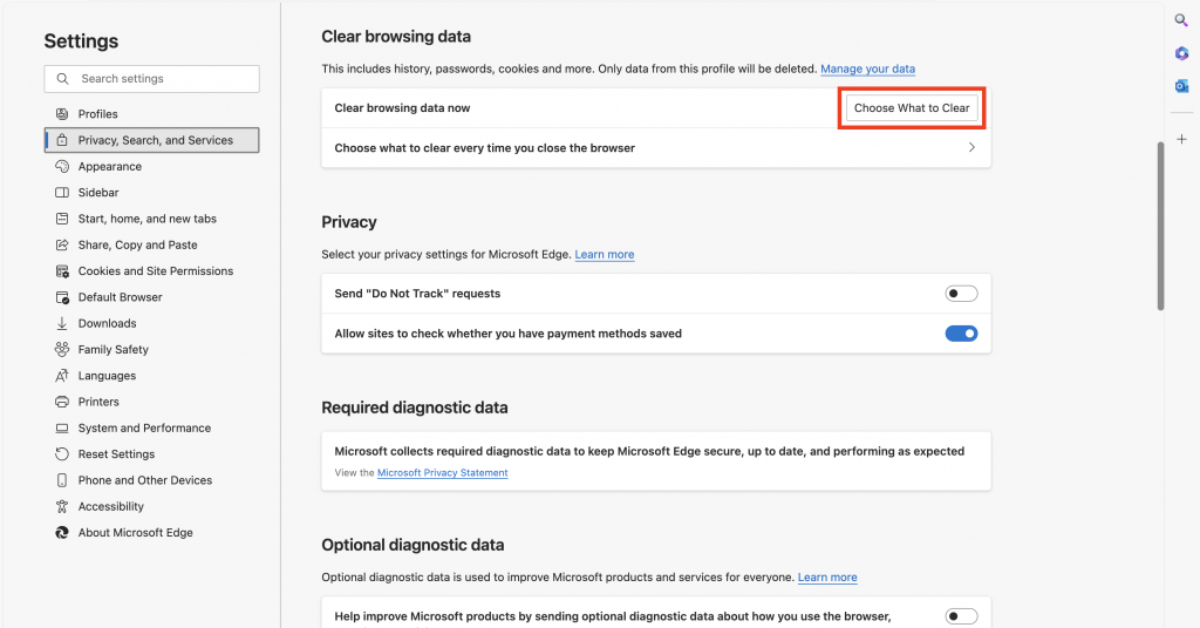
How to Clear Cache on Computer Edge
Microsoft Edge stores temporary browsing data similarly to Chrome.
Clear Edge Cache
- Open Edge
- Click the three-dot menu
- Open Settings
- Go to Privacy, Search, and Services
- Select Clear Browsing Data
- Remove cached images and files
This improves browser responsiveness and page loading.
How to Clear Cache on Computer Microsoft Edge
Microsoft Edge also allows automatic cache clearing.
Enable Automatic Deletion
- Open Edge Settings
- Go to Privacy
- Choose what clears when browser closes
This helps reduce long-term cache buildup.
How to Clear Cache on Computer on Edge Quickly
The fastest shortcut for Edge is:
Ctrl + Shift + Delete
This opens the browser cleanup menu instantly.
How to Clear Cache on Computer Safari
Safari users on Mac can clear browser cache easily.
Enable Develop Menu
- Open Safari
- Go to Settings
- Select Advanced
- Enable Show Develop Menu
Clear Safari Cache
- Open Develop menu
- Click Empty Caches
This refreshes website data immediately.
How to Clear Cache on Computer Internet Explorer
Although outdated, some systems still use Internet Explorer.
Clear Cache in Internet Explorer
- Open Internet Explorer
- Click Tools
- Select Internet Options
- Under Browsing History, click Delete
- Choose Temporary Internet Files
This removes stored website cache.
How to Clear Cache on Computer App
Many apps store temporary files independently from browsers.
On Windows
Go to:
Settings > Apps > Installed Apps
Some applications include built-in cache clearing options.
On Mac
Certain applications store cache inside:
~/Library/Caches
Clearing app cache may solve crashes or loading issues.
How to Clear Cache on Computer Command Prompt
Advanced users often clear DNS and temporary files through Command Prompt.
Flush DNS Cache
Open Command Prompt and type:
ipconfig /flushdns
Clear Temporary Files
You can also manually delete files from:
- Temp folders
- System cache directories
Always use caution with command-line tools.
How to Clear Cache on Computer Shortcut
Keyboard shortcuts save time when clearing browser cache.
Common Browser Shortcuts
Windows:
- Ctrl + Shift + Delete
Mac:
- Command + Shift + Delete
These shortcuts work in:
- Chrome
- Edge
- Firefox
Does Clearing Cache Delete Important Files?
Usually no. Clearing cache mainly removes temporary data.
However:
- Some websites may log you out
- Saved preferences may reset
- Pages may load slower briefly afterward
Your personal documents, photos, and installed programs remain unaffected.
How Often Should You Clear Cache?
For most users:
- Browser cache every few weeks
- System cleanup monthly
- App cache when issues appear
Heavy internet users may benefit from more frequent cleaning.
Common Mistakes to Avoid
Deleting Important System Files
Only remove files from trusted cache locations.
Clearing Passwords Accidentally
Double-check browser deletion options before confirming.
Overusing Cleanup Tools
Aggressive cleaning software may remove useful files unnecessarily.
FAQs About Clearing Computer Cache
What happens when you clear cache on a computer?
Temporary files are removed, which can improve performance and fix loading problems.
Will clearing cache speed up my computer?
In many cases, yes. Removing unnecessary temporary data can improve responsiveness.
Is clearing cache safe?
Yes, when done correctly through system or browser settings.
Does clearing cache delete passwords?
Only if you select saved passwords during browser cleanup.
How often should cache be cleared?
Most users benefit from clearing cache every few weeks or whenever performance issues appear.
Conclusion
Learning how to clear cache on computer systems is one of the simplest ways to improve performance, fix browser issues, and free up storage space. Whether you use Windows, Mac, Chrome, Edge, Safari, or older browsers, removing temporary files helps your system run more smoothly and efficiently.
Regular cache maintenance keeps websites loading properly, apps functioning better, and operating systems cleaner overall. By combining browser cleanup, system optimization, and occasional DNS flushing, you can maintain a faster and more reliable computer experience without needing advanced technical skills.