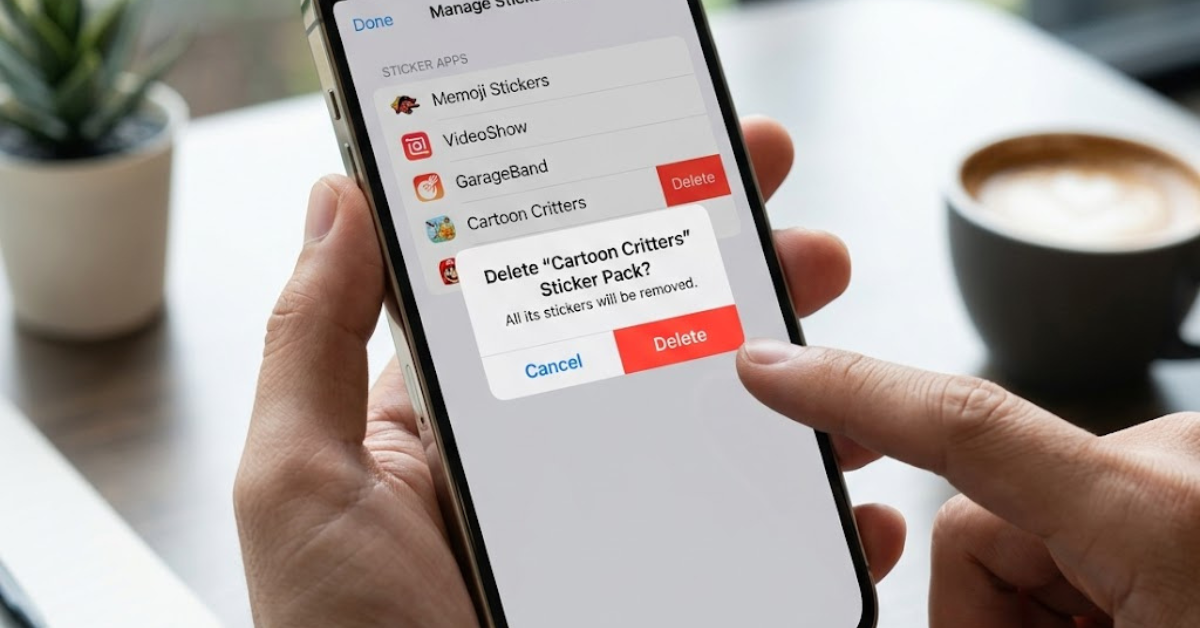

Stickers can make conversations more fun, expressive, and personal. But after a while, your sticker collection can become cluttered with unwanted stickers, old photo stickers, or packs you no longer use. If you’re wondering how to delete stickers on iPhone, you’re not alone.
Since Apple introduced enhanced sticker features in recent iOS updates, many users have been searching for ways to remove stickers from Messages, the keyboard, and third-party apps. Whether you’re trying to learn how to delete stickers on iPhone keyboard, how to delete stickers on iPhone Messages, or remove sticker packs from WhatsApp and Messenger, this guide covers everything you need to know.
Understanding Stickers on iPhone
Before learning how to remove them, it’s helpful to understand the different types of stickers available on iPhone.
These include:
- Live Stickers created from your photos
- Emoji stickers
- iMessage sticker packs
- Third-party app stickers
- WhatsApp stickers
- Messenger stickers
The deletion process varies depending on the type of sticker you’re trying to remove.
How to Delete Stickers on iPhone Messages
One of the most common questions is how to delete stickers on iPhone Messages.
Apple’s Messages app allows users to create and save stickers from photos, making them accessible across conversations.
Delete a Sticker from Messages
Follow these steps:
- Open the Messages app.
- Start or open a conversation.
- Tap the “+” icon or Sticker drawer.
- Open your sticker collection.
- Locate the sticker you want to remove.
- Press and hold the sticker.
- Select Delete.
The sticker will be removed from your collection.
How to Delete Stickers on iPhone iMessage
If you’re specifically searching for how to delete stickers on iPhone iMessage, the process is nearly identical.
Remove Saved iMessage Stickers
- Open iMessage.
- Tap the Stickers section.
- Find the sticker.
- Long-press the sticker.
- Tap Delete if available.
In some iOS versions, you may need to access the sticker management menu first.
How to Delete Stickers on iPhone Keyboard
Many users want to know how to delete stickers on iPhone keyboard because stickers now appear directly within the emoji keyboard.
Remove Stickers from the Keyboard
- Open Messages or Notes.
- Bring up the keyboard.
- Tap the Emoji icon.
- Access the Stickers section.
- Locate the sticker.
- Touch and hold the sticker.
- Select Delete.
This removes unwanted stickers from appearing in the keyboard interface.
How to Delete Stickers on iPhone From Keyboard
If you’re wondering how to delete stickers on iPhone from keyboard, the same method applies.
The sticker must first be located inside the Stickers panel within the emoji keyboard before it can be deleted.
How to Delete Stickers on iPhone From Messages
Some users accidentally create Live Stickers and later want them removed.
Delete Live Stickers
- Open Messages.
- Open the Stickers drawer.
- Find the Live Sticker.
- Press and hold it.
- Choose Delete.
The sticker will immediately disappear from your saved collection.
How to Delete Stickers on iPhone Message Threads
If a sticker has already been sent in a conversation, deleting it from your collection will not automatically remove it from the message thread.
Remove a Sent Sticker
- Open the conversation.
- Locate the sticker.
- Press and hold the message.
- Choose Undo Send if available and within the allowed time window.
Otherwise, the sticker remains visible in the conversation history.
How to Delete Stickers on iPhone iOS 17
Apple significantly expanded sticker functionality in iOS 17.
If you’re searching how to delete stickers on iPhone iOS 17, follow these steps:
- Open Messages.
- Tap the “+” button.
- Select Stickers.
- Find the sticker.
- Long-press it.
- Tap Delete.
The process works for both photo stickers and Live Stickers.
How to Delete Stickers on iPhone iOS 18
For users looking for how to delete stickers on iPhone iOS 18, Apple has retained a very similar interface.
Steps
- Open Messages.
- Access Stickers.
- Press and hold the sticker.
- Select Delete.
Depending on updates, menu wording may vary slightly.
How to Delete Stickers on iPhone iOS 26
Many users search for how to delete stickers on iPhone iOS 26, often referring to future iOS updates or mistakenly identifying their version.
Regardless of version, Apple typically keeps sticker management inside the Messages sticker drawer and keyboard sticker section.
The deletion process generally remains:
- Open Stickers
- Long-press the sticker
- Tap Delete
How to Delete Stickers on iPhone 11
If you’re wondering how to delete stickers on iPhone 11, the steps depend on your installed iOS version rather than the device itself.
The same sticker management options are available on supported iOS releases.
How to Delete Stickers on iPhone 13
For users searching how to delete stickers on iPhone 13, follow the same Messages and keyboard methods outlined above.
As long as your device supports Live Stickers, removal is straightforward.
How to Delete Stickers on iPhone 14
The process for how to delete stickers on iPhone 14 is identical:
- Open Messages.
- Access Stickers.
- Press and hold.
- Select Delete.
How to Delete Stickers on iPhone 15
If you’re searching how to delete stickers on iPhone 15, you’ll find sticker management integrated deeply into iOS.
Removing stickers typically takes only a few seconds.
How to Delete Stickers on iPhone 16
For users looking up how to delete stickers on iPhone 16, Apple continues to use the same sticker management system introduced in recent iOS versions.
Most sticker removals can be completed through the Messages app.
How to Remove Stickers on iPhone 17
Future iPhone models are expected to maintain similar sticker controls.
If you’re searching how to remove stickers on iPhone 17, the process will likely remain accessible through Messages and the emoji keyboard.
How to Delete Stickers on iPhone WhatsApp
WhatsApp uses its own sticker system separate from Apple’s Messages app.
Remove WhatsApp Stickers
- Open WhatsApp.
- Open a chat.
- Tap the Sticker icon.
- Select the sticker pack section.
- Tap Edit.
- Delete unwanted sticker packs.
You can also remove individual custom sticker packs if supported.
How to Remove Stickers on iPhone Messenger
Facebook Messenger also manages stickers independently.
Remove Messenger Stickers
- Open Messenger.
- Open a conversation.
- Access the Sticker menu.
- Manage sticker packs.
- Remove unwanted packs.
The exact menu may vary depending on the app version.
Why Can’t I Delete Certain Stickers?
Occasionally, users encounter stickers that cannot be removed.
Common reasons include:
- Sticker pack belongs to a third-party app
- iOS software bug
- Outdated iOS version
- Syncing issue with iCloud
- App permissions conflict
Updating iOS often resolves these problems.
Tips for Managing iPhone Stickers
To keep your sticker collection organized:
- Delete unused stickers regularly
- Remove unwanted sticker packs
- Update iOS frequently
- Organize favorite stickers
- Limit duplicate Live Stickers
A cleaner sticker library makes conversations easier and more enjoyable.
Frequently Asked Questions
How do I permanently remove stickers on iPhone?
Open Messages, access the Stickers section, press and hold the sticker, and tap Delete.
Can I remove stickers from the iPhone keyboard?
Yes. You can delete supported stickers directly from the keyboard’s sticker section.
Why do deleted stickers keep coming back?
This may happen due to iCloud syncing or app-specific sticker packs that automatically reload.
Can I delete Live Stickers created from photos?
Yes. Live Stickers can be removed from the sticker drawer in Messages.
How do I remove sticker packs from WhatsApp?
Open WhatsApp, go to the sticker menu, tap Edit, and remove unwanted sticker packs.
Does deleting a sticker remove it from old messages?
No. Deleting a sticker removes it from your collection but usually does not remove it from existing conversations.
Conclusion
Learning how to delete stickers on iPhone is easier than many users realize. Whether you’re managing Live Stickers, removing saved stickers from Messages, cleaning up your keyboard, or deleting sticker packs from WhatsApp and Messenger, most removals take only a few taps.
By regularly organizing your sticker collection, updating iOS, and removing unused sticker packs, you can keep your iPhone’s messaging experience clean and clutter-free. If you’re interested in getting even more out of your device, explore additional iPhone tips, iMessage features, and iOS productivity guides to make everyday communication smoother and more enjoyable.