
If you’re searching for how to find Apple ID password without resetting it, you’re not alone. Apple ID is the key to everything in your Apple ecosystem—iCloud, App Store, iMessage, and more—so forgetting it can feel stressful fast.
Here’s the important truth right away: Apple does not allow you to directly view or “find” your Apple ID password for security reasons. That means there is no legitimate way to reveal it if you don’t already have it saved somewhere.
But don’t worry—there are still a few real, safe methods you can try before you go through a full reset.
Why You Can’t Directly Find Your Apple ID Password
Apple prioritizes account security over convenience. Your password is encrypted and not visible to Apple or your device.
So when people search for how to find Apple ID password without resetting it, what they usually need is one of these solutions:
- A saved password on a device
- A browser-stored login
- A password manager entry
- Access through a trusted Apple device already signed in
Check Saved Passwords on iPhone Keychain Method
One of the easiest ways to recover your Apple ID password is through Apple’s built-in password manager.
Steps to check saved passwords:
- Open Settings
- Tap Passwords
- Authenticate using Face ID / Touch ID / passcode
- Search for Apple ID or your email address
- Check if the password is saved
If you previously chose “Save Password,” you might find it here without needing a reset.
Find Apple ID Password on Mac iCloud Keychain
If you use a Mac, your password may be stored in Keychain Access.
Steps:
- Open Keychain Access
- Search for your Apple ID email
- Look for an “iCloud” or “Apple” login entry
- Click it and select Show Password
- Enter your Mac password to reveal it
This is one of the most effective ways when trying to avoid resetting your Apple ID password.
Check Browser Saved Passwords Chrome, Safari, Edge
Many users log into Apple ID through browsers, and passwords may be saved there.
Safari (iPhone/Mac):
- Go to Settings → Passwords
- Search Apple ID login
Chrome:
- Go to Password Manager
- Search for appleid.apple.com
Microsoft Edge:
- Settings → Profiles → Passwords
If you’re lucky, your Apple ID password may already be stored.
Use a Trusted Apple Device Already Logged In
If you’re still signed in on an iPhone, iPad, or Mac, you may not need the password immediately.
From a trusted device, you can:
- Change Apple ID password without knowing the old one (using device passcode)
- Manage account settings
- Add recovery options
This is often the closest workaround to how to find Apple ID password without resetting it, even though technically it’s a password replacement, not retrieval.
What You Should NOT Do
When trying to recover your Apple ID access, avoid risky or fake solutions:
- Third-party “password finder” tools (often scams)
- Jailbreaking or hacking methods
- Websites asking for Apple ID credentials
These can compromise your account permanently.
Safer Alternative: Reset if Nothing Works
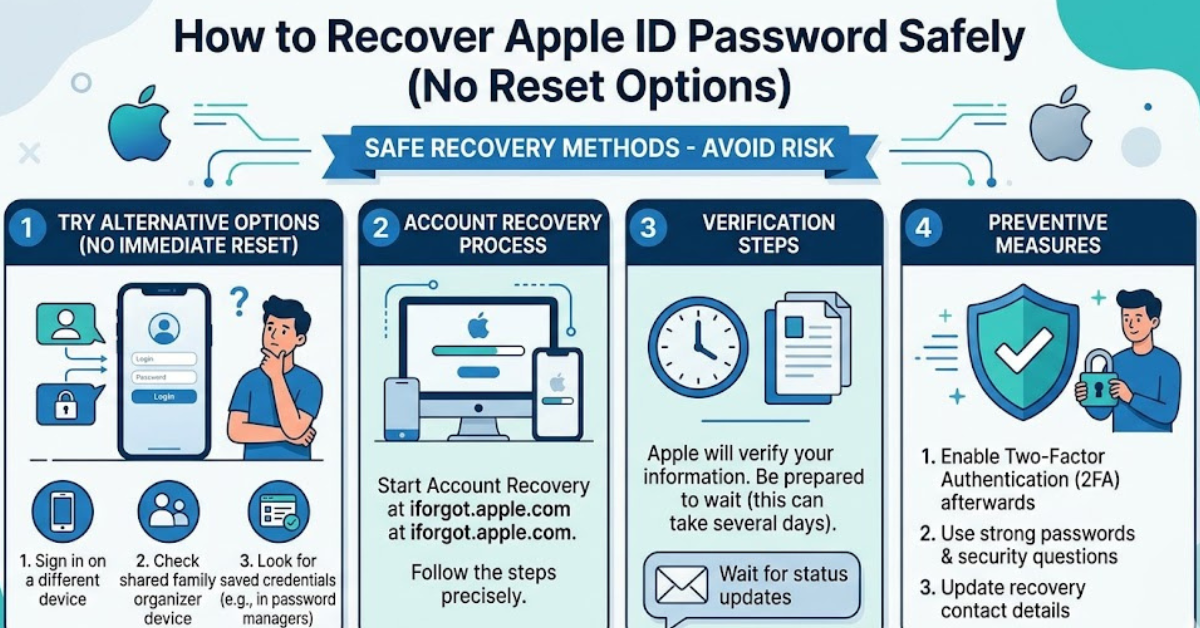
If you cannot find your password anywhere, Apple’s official recovery is the only option:
- Visit iforgot.apple.com
- Follow account recovery steps
- Reset your password securely
It may feel like a hassle, but it protects your data, photos, and purchases.
FAQs: Apple ID Password Recovery
Can I find my Apple ID password without resetting it?
No, Apple does not allow direct viewing of passwords. You can only find it if it is saved in Keychain or a password manager.
Where can I check saved Apple ID passwords?
Check iPhone Settings → Passwords, Mac Keychain Access, or browser password managers.
Can Apple tell me my Apple ID password?
No. Apple cannot view or disclose your password due to encryption.
What if I forgot my Apple ID and password?
You can recover your Apple ID at iforgot.apple.com and reset your password securely.
Is there any app that can reveal Apple ID passwords?
No legitimate app can do this. Any claiming otherwise is unsafe.
Conclusion
When it comes to how to find Apple ID password without resetting it, the reality is simple: Apple doesn’t provide a direct way to reveal your password. However, you may still recover it if it’s saved in Keychain, a browser, or a password manager.
If those options don’t work, the safest path is a secure password reset through Apple’s official recovery system. It might not be what you hoped, but it ensures your account stays protected and fully under your control.
If you want, I can also show you how to recover a locked Apple ID or fix “forgot Apple ID email” issues step by step.