
If you’re trying to learn how to figure out Screen Time password, you’re not alone. Many iPhone and iPad users forget their Screen Time passcode, especially when it’s set months ago or by a parent/guardian.
Screen Time is Apple’s built-in digital wellbeing tool that restricts app usage, content, and settings. But when the passcode is forgotten, it can feel like you’re locked out of your own device.
The good news? There are safe, Apple-approved ways to recover or reset it—no risky hacks needed.
What Is a Screen Time Password?
The Screen Time password (or passcode) is a 4-digit or 6-digit code used to:
- Lock Screen Time settings
- Restrict app usage
- Control content & privacy settings
- Prevent changes to downtime or app limits
It is separate from your iPhone unlock code, which is why many users forget it.
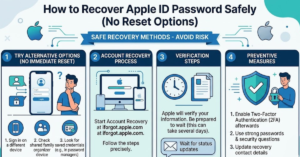
How to Figure Out Screen Time Password Using Apple ID
If you set up Screen Time properly, Apple allows you to reset it using your Apple ID.
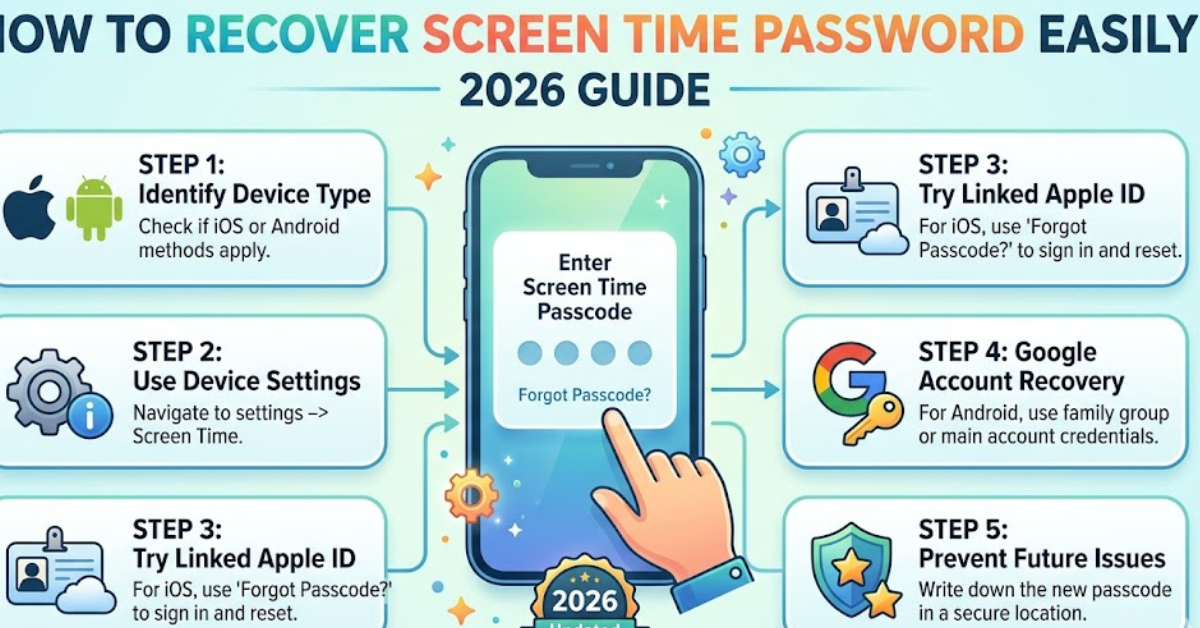
Steps to Reset Screen Time Passcode:
- Go to Settings
- Tap Screen Time
- Select Change Screen Time Passcode
- Tap Forgot Passcode?
- Enter your Apple ID and password
- Set a new Screen Time passcode
This is the most reliable and official method for how to figure out Screen Time password without losing data.
Reset Screen Time Password on iPhone or iPad (Without Apple ID)
If you don’t remember the Apple ID linked to Screen Time, things get a bit more limited. Apple does not allow direct password recovery without verification, but you still have options.
Option 1: Sign in with Family Sharing Organizer
If your device is part of Family Sharing:
- The family organizer can reset or remove your Screen Time passcode
- They can do it from their device under Family settings
Option 2: Update iOS and Try Recovery Again
Sometimes updating iOS restores the “Forgot Passcode” option:
- Go to Settings > General > Software Update
- Install latest iOS version
- Try the reset steps again
What NOT to Do When Trying to Figure Out Screen Time Password
Many websites suggest risky methods, but they can:
- Damage your device settings
- Cause data loss
- Violate Apple’s security rules
Avoid:
- Random “unlock tools”
- Jailbreaking your iPhone
- Guessing repeatedly (can lock settings further)
Apple intentionally protects Screen Time to prevent unauthorized access.
How to Remove Screen Time Password Completely
If recovery isn’t possible, you can remove Screen Time entirely:
Steps:
- Go to Settings
- Tap Screen Time
- Scroll down and tap Turn Off Screen Time
- Enter passcode or Apple ID if requested
If you can’t access it, you may need to reset all settings or restore the device via iTunes/Finder.
Tips to Avoid Forgetting Screen Time Password Again
- Use the same Apple ID for recovery
- Store passcodes in a secure password manager
- Avoid using random numbers
- Keep Family Sharing settings updated
FAQs About How to Figure Out Screen Time Password
1. Can I recover Screen Time password without Apple ID?
No, Apple requires Apple ID verification for security reasons. Without it, recovery options are limited.
2. What happens if I enter the wrong Screen Time password too many times?
You may be temporarily locked out from changing settings, but your device will still function normally.
3. Is there a way to bypass Screen Time password?
No official or safe bypass exists. Apple restricts this to protect user privacy and parental controls.
4. Can Apple Support help recover it?
Yes, Apple Support can guide you through recovery if you can verify ownership of the device.
5. Does resetting the iPhone remove Screen Time?
Yes, a full restore removes Screen Time settings, but it also erases data unless backed up.
Conclusion
If you’re trying to understand how to figure out Screen Time password, the key takeaway is simple: Apple doesn’t allow guessing or bypassing, but it does offer secure recovery options through Apple ID and Family Sharing.
The safest path is always the official reset method. It protects your data, keeps your device secure, and ensures you don’t run into bigger issues later.
If you’re still locked out, the next step is contacting Apple Support or checking Family Sharing settings for assistance.