
Ever sent a message on Discord and immediately regretted revealing too much—like a game plot twist, movie spoiler, or surprise announcement? You’re not alone. Knowing how to spoiler text on Discord is one of those small but powerful skills that instantly improves your chat etiquette.
In this guide, you’ll learn exactly how to hide text, images, and even attachments using Discord’s spoiler system. We’ll break down every method step-by-step so you can use it on desktop, mobile, and beyond—without confusion.
What Does Spoiler Text Mean on Discord?
Before learning how to spoiler text on Discord, it helps to understand what it actually does.
Spoiler text is a formatting feature that hides your message behind a blurred or blocked overlay. Other users must click or tap it to reveal the content.
It’s commonly used for:
- Movie or game spoilers
- Surprise announcements
- Sensitive or NSFW content (where allowed)
- Jokes that rely on suspense
- Hidden answers in community discussions
Discord gives users multiple ways to apply spoiler formatting depending on the device and content type.
How to Spoiler Text on Discord Using Markdown
The most common method is using Discord’s markdown syntax.
Basic Spoiler Format
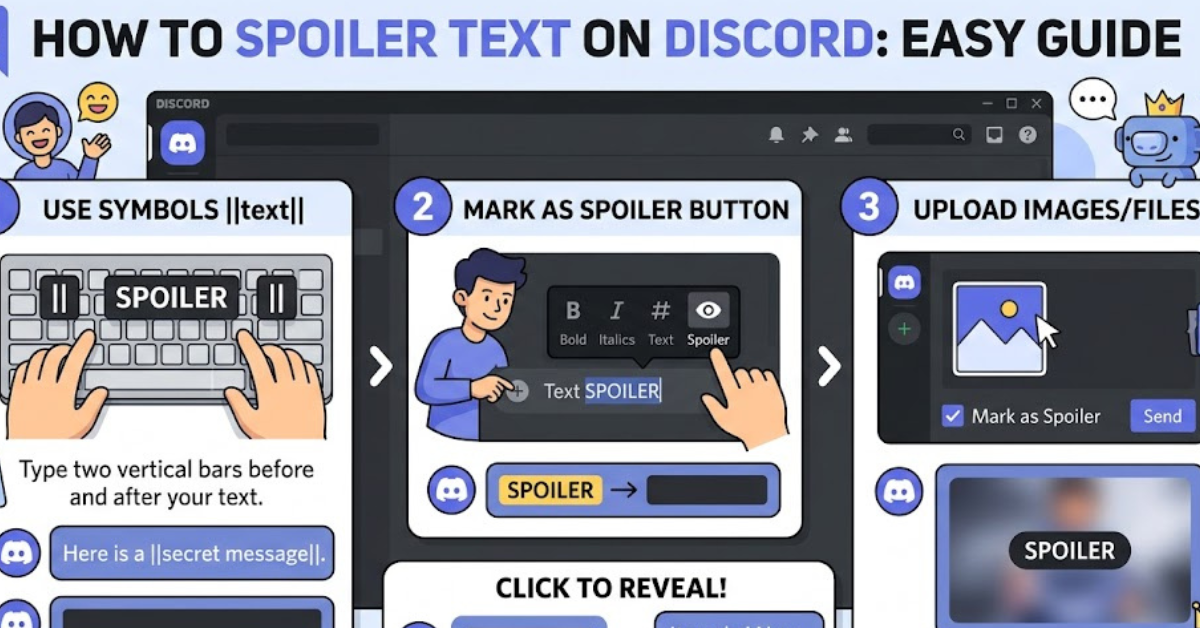
To hide text, wrap it in double vertical bars:
||This is hidden spoiler text||Once sent, it will appear blurred or blocked until clicked.
Example in action:
You type:
I can’t believe the ending was ||the main character was the villain||.Others will only see the hidden portion after interacting with it.
This method is fast, universal, and works on all devices.
How to Spoiler Text on Discord Desktop
If you’re using Discord on Windows or Mac, you also have a built-in menu option.
Steps:
- Type your message in the chat box
- Highlight the text you want to hide
- Right-click the selection
- Click “Mark as Spoiler”
Discord will automatically wrap your selection with spoiler formatting.
Alternative method:
You can still manually use:
||spoiler text||This is especially useful for long messages or quick typing.
Using how to spoiler text on Discord on desktop becomes second nature once you get used to both options.
How to Spoiler Text on Discord Mobile
On mobile, the process is slightly different but still simple.
Steps for Android & iOS:
- Open Discord and go to a chat
- Type your message
- Highlight the text by long-pressing
- Tap the formatting menu (if available)
- Select “Mark as Spoiler”
If your app version doesn’t show the option, just use markdown:
||hidden message||Mobile users often rely on markdown because it’s faster and more consistent across updates.
How to Add Spoilers to Images and Attachments
Discord isn’t limited to text—you can also hide media.
Spoiler Images:
When uploading an image:
- Click the plus (+) icon
- Select your image
- Check the box labeled “Mark as Spoiler”
- Send the file
The image will appear blurred until clicked.
Spoiler Files:
You can also apply spoilers to:
- PDFs
- Videos
- Documents
- Audio clips
This makes Discord especially useful for communities that share sensitive or surprise content.
Advanced Tips for Using Spoilers Effectively
Once you understand how to spoiler text on Discord, you can use it more strategically.
1. Combine Spoilers with Formatting
You can mix spoilers with bold or italics:
||**Big reveal inside spoiler**||2. Use Spoilers for Roleplay or Storytelling
Gamers and roleplay communities often hide plot twists to build suspense.
3. Don’t Overuse Spoilers
If everything is hidden, conversations become frustrating. Use it only when necessary.
4. Spoilers in Code Blocks (Workaround)
Spoilers don’t always work inside code blocks, so avoid mixing:
||code inside here|| unreliableCommon Mistakes to Avoid
Even though how to spoiler text on Discord is simple, users often make small errors:
- Forgetting to close
||properly - Adding spaces inside the spoiler bars incorrectly
- Expecting spoilers to work in embeds or bots
- Using outdated mobile app versions
Fixing these usually solves 90% of spoiler-related issues.
Key Takeaways
- Spoiler text hides content until clicked
- Use
||text||to apply spoilers instantly - Desktop and mobile both support spoiler formatting
- Images and files can also be marked as spoilers
- Proper use improves communication clarity and user experience
FAQ: How to Spoiler Text on Discord
1. How do I spoiler text on Discord quickly?
The fastest way is using double bars like ||this is hidden||. It works on every device and requires no settings.
2. Why isn’t my spoiler text working?
You may have missed a || or added spaces incorrectly. Also check if you’re typing inside unsupported formats like some bots or embeds.
3. Can I spoiler images on Discord?
Yes, when uploading an image, simply tick “Mark as Spoiler” before sending it.
4. Does spoiler text work in group chats and servers?
Yes, spoiler formatting works in all Discord chats including servers, DMs, and group messages.
5. Is there a button for spoiler text on mobile?
Some versions have a “Mark as Spoiler” option after selecting text, but markdown ||text|| always works.
6. Can bots send spoiler messages?
Yes, bots can send spoiler content if they format messages using Discord’s spoiler syntax.
Conclusion
Learning how to spoiler text on Discord is a small but powerful way to improve communication, especially in gaming, entertainment, and community servers. Whether you’re hiding a major plot twist or just keeping a surprise intact, Discord makes it easy with simple markdown and built-in tools.
Once you get used to it, spoiler formatting becomes second nature—and your chats instantly become more thoughtful and organized.
If you’re active on Discord, try using spoilers in your next message and see how it changes the conversation flow.