
Few things are more frustrating than capturing the perfect photo only to discover it looks blurry, blocky, or pixelated. Whether it’s a treasured family picture, a professional headshot, or an image for social media, poor image quality can make an otherwise great photo unusable.
If you’re searching for how to fix pixelated photos, the good news is that modern editing tools and AI-powered software can often improve image quality significantly. While severely pixelated images may not be fully recoverable, many photos can be sharpened, enhanced, and restored with the right techniques.
In this guide, you’ll learn how to fix pixelated photos, including methods for Photoshop, iPhone devices, and online image enhancement tools.
What Causes Pixelated Photos?
Before fixing the problem, it’s important to understand why pixelation occurs.
Pixelation happens when individual pixels become visible due to insufficient image resolution or excessive enlargement.
Common Causes of Pixelation
- Low-resolution images
- Excessive cropping
- Over-compression
- Poor-quality screenshots
- Digital zoom usage
- Improper image resizing
- File format degradation
Understanding the cause can help determine the best repair method.
What Is Pixelation?
A digital image consists of tiny colored squares called pixels.
When there aren’t enough pixels to display details clearly, images appear:
- Blocky
- Jagged
- Blurry
- Distorted
The larger the image is stretched beyond its original size, the more noticeable the pixelation becomes.
Can Pixelated Photos Be Fixed?
The answer depends on the severity of the damage.
Mild Pixelation
Often repairable through:
- Sharpening
- Upscaling
- AI enhancement
- Noise reduction
Severe Pixelation
May improve somewhat but cannot always be restored completely because missing image data cannot be perfectly recreated.
Modern AI tools can fill in details surprisingly well, but results vary depending on image quality.
How to Fix Pixelated Photos Using AI Image Enhancers
Artificial intelligence has transformed photo restoration.
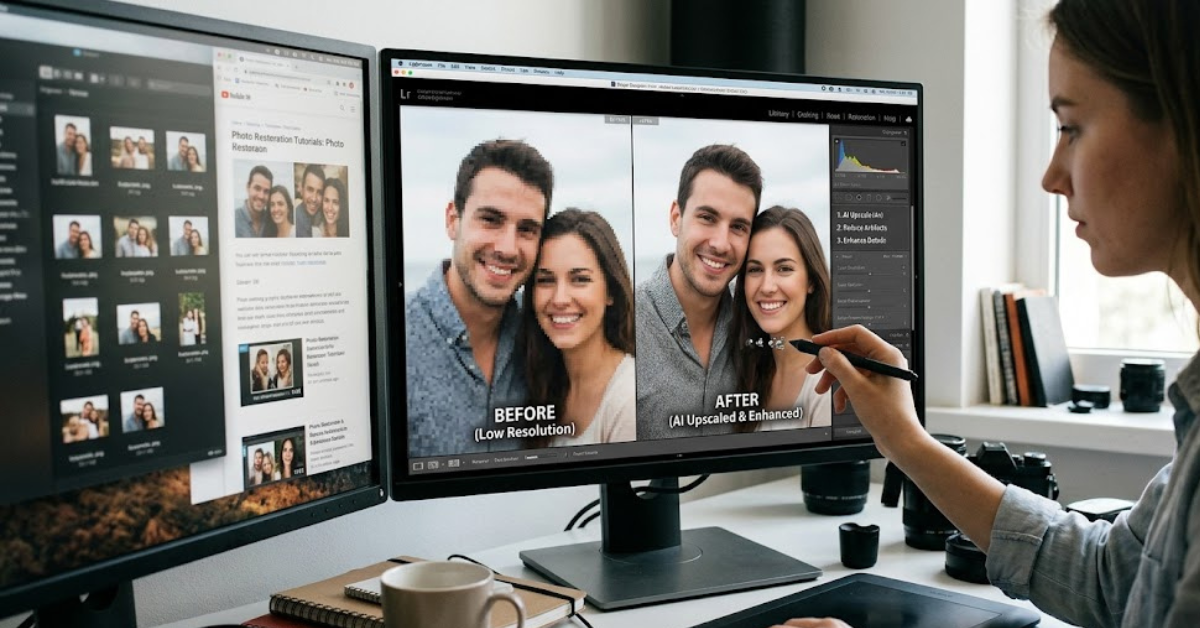
AI-powered software analyzes images and predicts missing details to create a sharper version.
Benefits of AI Enhancement
- Increases resolution
- Reduces pixelation
- Restores details
- Improves facial features
- Sharpens edges
Best Situations for AI Tools
- Old family photos
- Social media images
- Screenshots
- Portraits
- Enlarged photos
AI enhancement is often the fastest and easiest solution for everyday users.
How to Fix Pixelated Photos in Photoshop
Adobe Photoshop remains one of the most powerful tools for improving image quality.
Method 1: Use Smart Sharpen
- Open the image in Photoshop.
- Select Filter.
- Choose Sharpen.
- Click Smart Sharpen.
- Adjust:
- Amount
- Radius
- Noise Reduction
This can improve detail and reduce the appearance of pixelation.
Method 2: Use Camera Raw Filter
- Open the image.
- Select Filter.
- Choose Camera Raw Filter.
- Increase:
- Texture
- Clarity
- Sharpness
Use moderation to avoid creating unnatural artifacts.
Method 3: Preserve Details Upscaling
Photoshop includes advanced image resizing tools.
- Select Image.
- Click Image Size.
- Enable Resample.
- Choose Preserve Details 2.0.
- Increase image dimensions gradually.
This method often produces better results than standard enlargement.
How to Fix Pixelated Photos on iPhone
Many people want to know how to fix pixelated photos on iPhone without using a computer.
Fortunately, several built-in and third-party options are available.
Use the Photos App
Although the Photos app cannot fully remove pixelation, it can improve image appearance.
Adjust:
- Sharpness
- Definition
- Brilliance
- Contrast
To edit:
- Open Photos.
- Select the image.
- Tap Edit.
- Adjust enhancement sliders.
These tweaks can improve visual quality.
Use AI Photo Enhancement Apps
Popular iPhone apps can upscale and sharpen images automatically.
Common features include:
- Resolution enhancement
- Face restoration
- Noise reduction
- Detail sharpening
Many apps process images in seconds.
Improve Image Quality by Finding the Original File
Sometimes the simplest fix is obtaining a higher-quality version.
Check Whether You Have:
- Original camera files
- Cloud backups
- Uncompressed copies
- RAW images
A higher-resolution source image will almost always outperform any editing technique.
Avoid Excessive Zooming
Digital zoom is a major cause of pixelation.
Why It Happens
Digital zoom enlarges pixels rather than capturing additional image detail.
This often results in:
- Soft images
- Blurry edges
- Visible pixel blocks
Whenever possible:
- Move closer to the subject.
- Use optical zoom instead.
Reduce Compression Artifacts
Many messaging apps compress images before sending them.
Common Sources
- Messaging apps
- Social media uploads
- Email attachments
- Screenshots
If possible:
- Share original files.
- Use cloud storage links.
- Upload high-resolution versions.
Reducing compression preserves image quality.
Use Noise Reduction Carefully
Noise reduction can help smooth pixelated areas.
However, excessive noise reduction may create:
- Plastic-looking skin
- Loss of detail
- Soft textures
The best approach is balancing:
- Noise reduction
- Sharpening
- Texture enhancement
Subtle adjustments usually produce the most natural results.
How to Prevent Pixelated Photos
Prevention is easier than restoration.
Capture Photos at Maximum Resolution
Always use your camera’s highest resolution settings.
More pixels provide:
- Better detail
- More editing flexibility
- Improved print quality
Avoid Repeated Saving
Each save in certain formats may reduce image quality.
Best practices:
- Save originals.
- Use lossless formats when possible.
- Avoid repeated exports.
Shoot in Good Lighting
Low-light conditions often create image noise that resembles pixelation.
Good lighting improves:
- Sharpness
- Detail
- Overall image quality
Use High-Quality Cameras
Modern smartphone cameras are excellent, but higher-end cameras generally capture more detail and provide better recovery options.
Best Tools for Fixing Pixelated Photos
Depending on your needs, several options can help.
Beginner-Friendly Tools
- AI photo enhancers
- Mobile photo-editing apps
- Built-in smartphone editors
Professional Tools
- Adobe Photoshop
- Lightroom
- Advanced AI upscaling software
The right tool depends on your experience level and image quality goals.
Signs a Photo Cannot Be Fully Restored
Unfortunately, not every image can be repaired completely.
Challenges include:
- Extremely low resolution
- Heavy compression
- Missing visual information
- Severe digital artifacts
While enhancement can improve appearance, some detail may be permanently lost.
Frequently Asked Questions
How do I fix pixelated photos?
You can use AI image enhancers, Photoshop sharpening tools, resolution upscaling, and noise reduction techniques to improve image quality.
How to fix pixelated photos in Photoshop?
Use Smart Sharpen, Camera Raw Filter, and Preserve Details 2.0 upscaling to reduce pixelation and restore detail.
How to fix pixelated photos on iPhone?
Use the Photos app’s editing tools or AI-powered photo enhancement apps to sharpen and upscale images.
Can pixelated images be restored completely?
Not always. The success of restoration depends on the amount of image data available.
Why do my photos become pixelated?
Common causes include low resolution, digital zoom, image compression, excessive cropping, and poor image quality.
Do AI photo enhancers really work?
Yes. Modern AI tools can significantly improve image sharpness and resolution, especially for moderately pixelated photos.
Will increasing image size fix pixelation?
Simply enlarging an image often makes pixelation worse. AI upscaling produces much better results.
Can screenshots be unpixelated?
In some cases, yes. AI enhancement tools can improve screenshot quality, though heavily compressed images may have limitations.
Conclusion
Learning how to fix pixelated photos can help rescue valuable images that might otherwise seem unusable. Whether you’re using professional software like Photoshop, AI-powered enhancement tools, or built-in editing features on your iPhone, there are numerous ways to improve image quality and reduce visible pixelation.
The most effective approach depends on the severity of the issue, but methods such as sharpening, upscaling, noise reduction, and AI restoration can often deliver impressive results. While no tool can fully recreate details that were never captured, understanding how to fix pixelated photos in Photoshop and how to fix pixelated photos on iPhone can dramatically improve the appearance of many low-quality images. For the best results, always start with the highest-quality original file available and use enhancement tools thoughtfully to maintain a natural look.