
Ever felt like your phone knows a little too much about you—and shares it with others you didn’t fully think through? With modern apps like Find My, Google Maps, Snapchat, and WhatsApp, location sharing is often turned on in the background, quietly broadcasting where you are.
If you’re searching for how to stop sharing location without them knowing, you’re likely trying to regain privacy or control over who can track your movements. In this guide, you’ll learn how location sharing works, how to disable it across major platforms, and what actually happens when you turn it off—so you can make informed decisions about your digital privacy.
Understanding Location Sharing and How It Works
Location sharing is a built-in feature in most smartphones and apps that allows real-time or periodic updates of your GPS position to selected contacts.
Common platforms that track or share location:
- Apple “Find My”
- Google Maps Location Sharing
- Snapchat Snap Map
- WhatsApp Live Location
- Facebook Messenger (in some regions)
These services rely on GPS, Wi-Fi, and mobile networks to pinpoint your location.
Important reality check
When you disable location sharing, most platforms either:
- Stop updating your location immediately, or
- Show your last known location
In some cases, users may receive a notification or notice that sharing has stopped—this depends on the app.
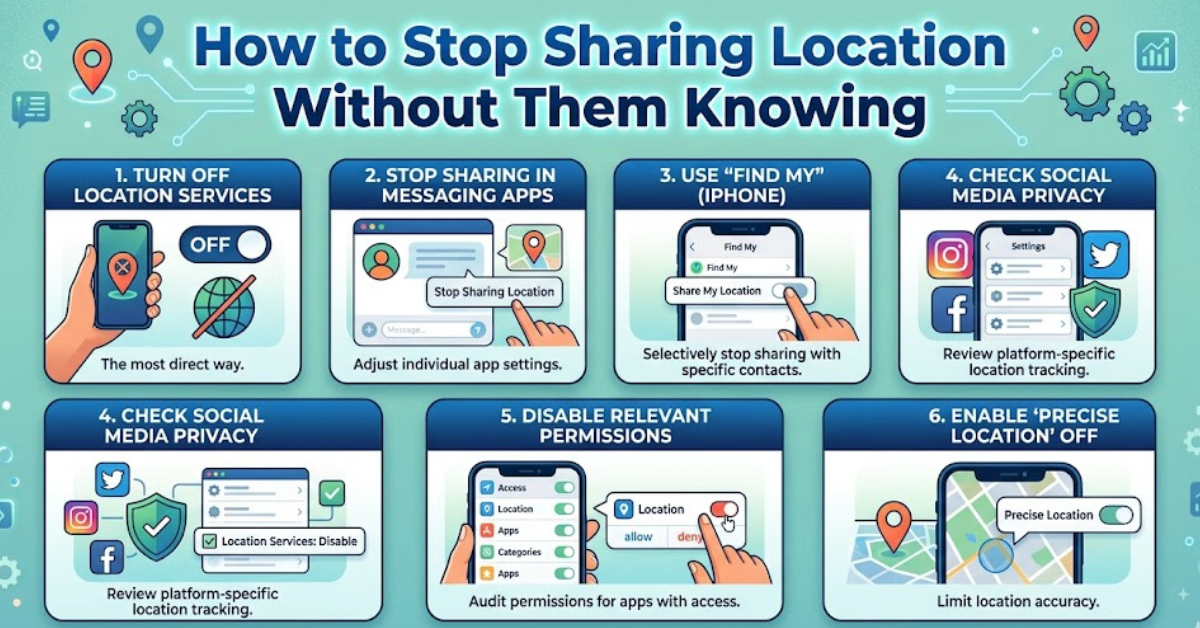
How to Stop Location Sharing on iPhone Find My & iOS
If you’re using an iPhone, Apple’s Find My service is the most common source of shared location.
Steps:
- Open Settings
- Tap your Apple ID name at top
- Go to Find My
- Tap Share My Location
- Toggle it OFF
To stop sharing with specific people:
- Open the Find My app
- Go to the People tab
- Select the person
- Tap Stop Sharing My Location
How to Stop Location Sharing on Android Google Maps
Android users often share location through Google Maps.
Steps:
- Open Google Maps
- Tap your profile icon
- Go to Location Sharing
- Select the person or link
- Tap Stop
You can also disable system-level tracking:
- Go to Settings > Location
- Toggle Location OFF
How to Turn Off Location on Social Apps
Snapchat Snap Map
- Open Snapchat
- Pinch screen to open Snap Map
- Tap Settings gear icon
- Enable Ghost Mode
WhatsApp Live Location
- Open chat
- Tap Live Location
- Select Stop Sharing
Facebook Messenger
- Open conversation
- Tap info icon
- Disable location sharing if active
What Happens When You Stop Sharing Location
Understanding consequences is important before changing settings.
Possible outcomes:
- Your last known location may remain visible
- The app may stop updating your movements
- Some contacts may notice you’re no longer active on the map
- Certain apps may send a notification (varies by platform)
So while many people search for how to stop sharing location without them knowing, it’s important to understand that modern apps often include transparency features to alert users when sharing changes.
Privacy vs. Transparency: A Real-World Balance
Location sharing was designed for safety—helping friends meet up, tracking family members, or finding lost devices. But it can easily feel invasive if left unmanaged.
Instead of relying on secrecy, a better long-term approach is:
- Regularly reviewing who has access
- Using “temporary sharing” instead of permanent access
- Turning off location when not needed
- Checking app permissions monthly
Key Takeaways
- Location sharing is active across multiple apps by default
- You can disable it through system or app settings
- Some platforms may show last known location or notify contacts
- Managing privacy regularly is better than relying on hidden controls
- Understanding settings gives you full control over your data
FAQs
1. Can I stop sharing my location without the other person knowing?
In most modern apps, stopping location sharing may not be fully invisible. Some platforms notify users or show last active location.
2. Will turning off location stop all tracking?
Turning off GPS disables real-time sharing, but some apps may still show your last known position until refreshed.
3. Does airplane mode stop location sharing?
Airplane mode disables network updates, but GPS may still function in some apps unless location services are fully turned off.
4. Can someone still see my location after I disable it?
They may see your last recorded location, but not real-time movement after sharing is stopped.
5. Is there a universal way to stop all location sharing?
Yes—turn off location services in your phone settings. However, this also affects maps, ride apps, and navigation tools.
6. Do apps notify people when I stop sharing location?
Some apps do, especially family-sharing features like Apple Find My, but it depends on platform settings and version.
Conclusion
Managing your digital privacy starts with understanding how location sharing works across your devices. While many people search for how to stop sharing location without them knowing, the reality is that most platforms are designed with transparency in mind.
The best approach isn’t secrecy—it’s control. By adjusting settings, reviewing app permissions, and limiting who can access your location, you can protect your privacy while staying in charge of your digital footprint.
If you’re serious about privacy, make it a habit to check your location settings regularly and only share when it truly serves a purpose.